
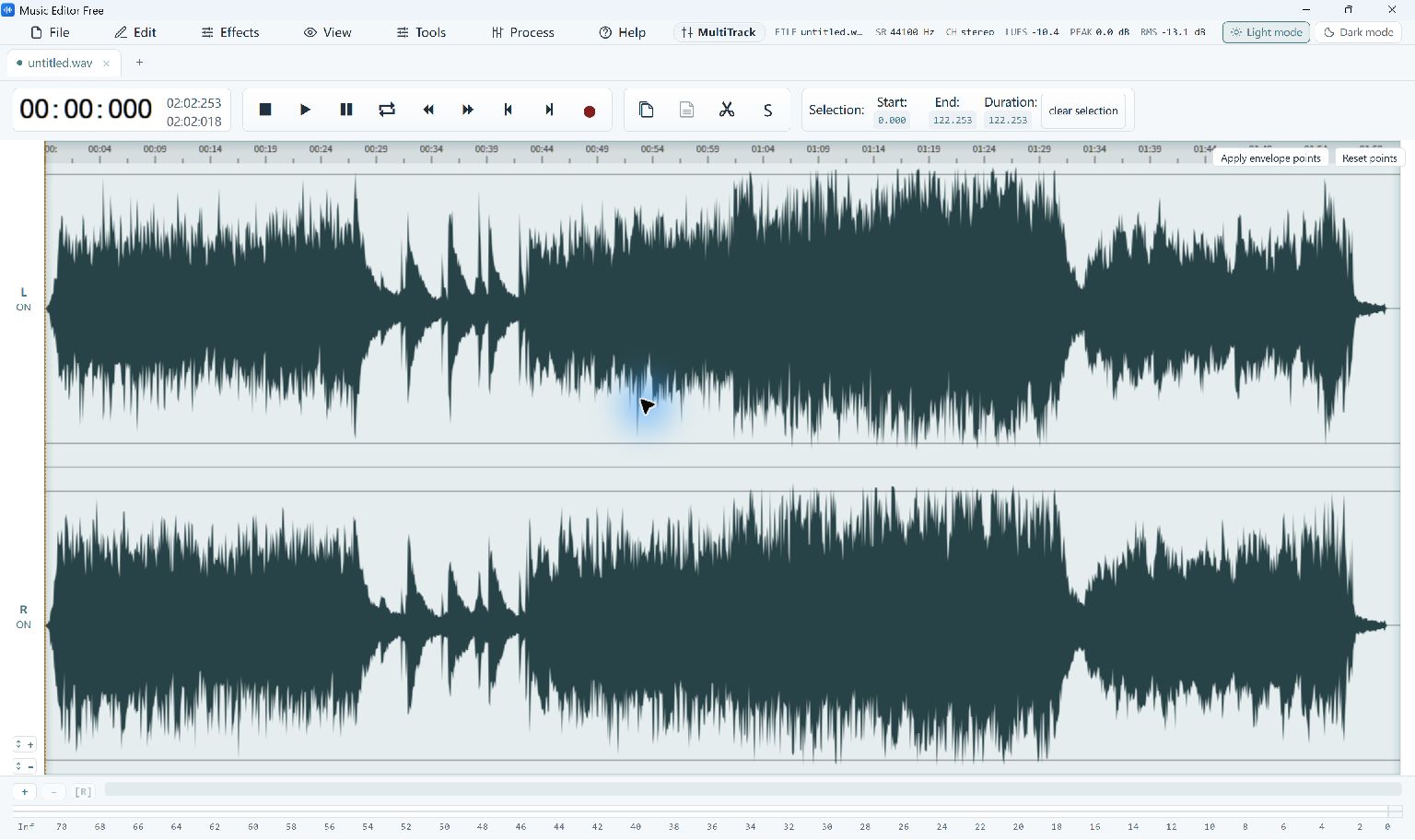
An audio editor changes the sound inside a file. A converter mainly changes how that sound is stored. For a shorter song excerpt, an unwanted pause or an uneven recording, start in Music Editor Free and work from an untouched source copy.
Make a Basic Waveform Edit
- Open the Source. Choose File → Open… and select your recording. Save a working copy before you start, especially when the source is your only recording.
- Find the Edit. Zoom around the part you want to change. Drag a selection and check its start, end and duration before deleting any audio.
- Make One Change. Remove an unwanted passage with Edit → Delete, or copy useful audio for another edit. Replay across the boundary to hear an abrupt cut.
- Adjust the Transition. Use a short fade where it helps the beginning or end. Compare at a similar playback level so louder sound does not automatically seem better.
- Export a New Copy. Choose File → Convert / Export… and select the whole file or selection as appropriate. Export a new filename, then play that file outside the editor.
Check the Quality and Output
MP3 export re-encodes the audio. Repeatedly exporting the same compressed copy can reduce quality, so return to your original or a working WAV when making further changes. Undo helps within an editing session; it is not a replacement for keeping the source.
Choose selection-only export for a clip, and whole-file export when your edits should become a complete recording.