
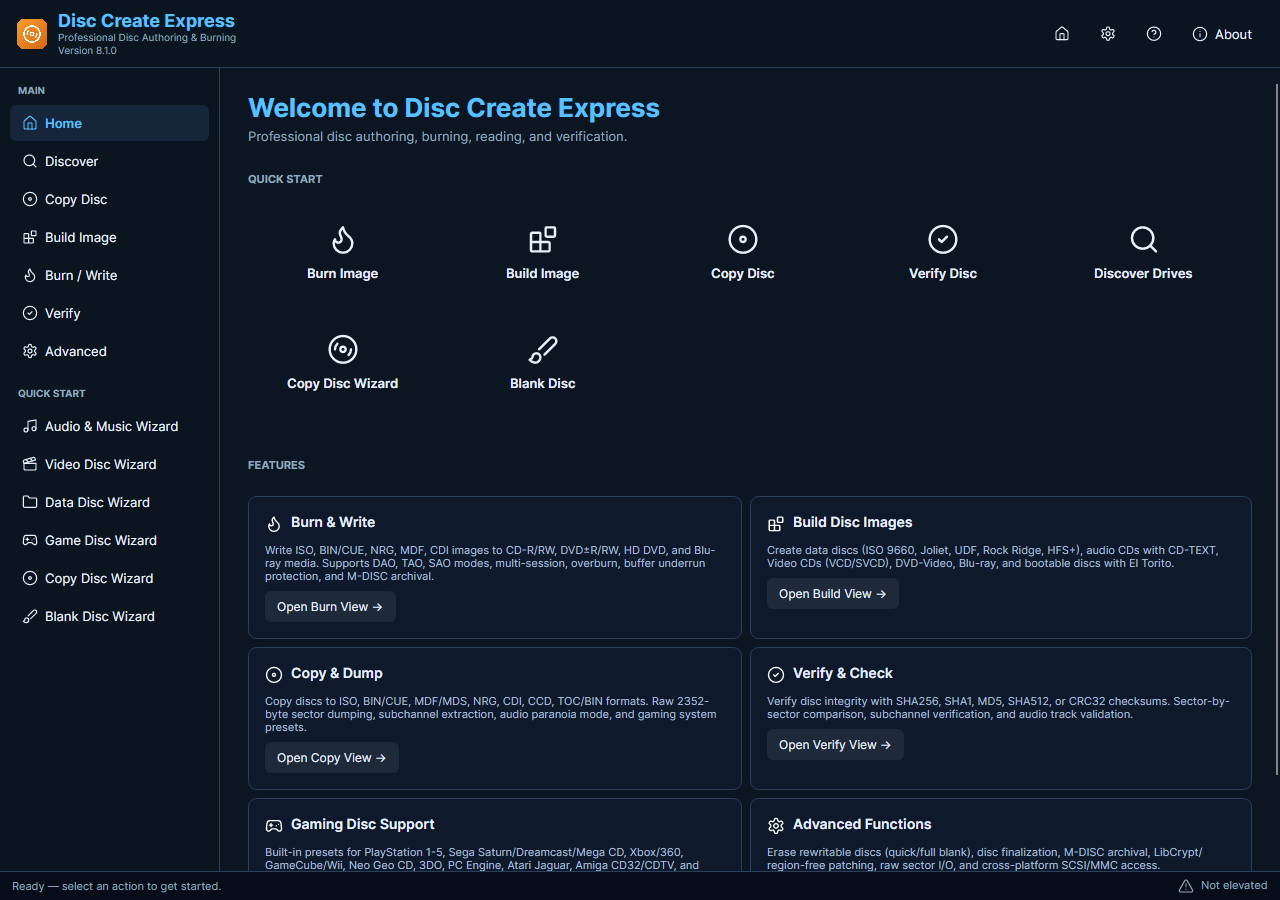
A disc type describes how content is organized, not just whether the blank is a CD or DVD. An audio CD stores tracks for CD playback; a data disc stores files. A video-disc workflow needs a compatible authored layout. Simply putting an MP4 on a DVD does not guarantee playback in a DVD player.
Match the Content to the Disc
- Start with the Destination. Check whether you need a computer backup, an audio CD or a disc for a particular video player. The receiving device determines the useful disc layout.
- Match the Drive. Select a writer that supports the intended media. A DVD drive does not automatically write Blu-ray, and a read-only drive cannot create any physical disc.
- Choose the Task. In Disc Create Express, select the audio, data or supported video-disc task. Read that task’s input requirements before adding a mixed folder of unrelated files.
- Review Capacity. Add your content and review the estimate. Check audio duration for an audio CD and storage requirements for data or prepared video content.
- Test the Finished Disc. Write suitable blank media and check the result in the intended device. For important data, keep another copy and use available verification rather than relying on the disc label.
Check the Media and Current Features
Video authoring and player compatibility depend on the chosen layout, source and device. The current software includes disc tools, but compilation checks do not establish playback on every physical player. Avoid promises that any video can be made compatible with any DVD or Blu-ray player.
For a basic file backup, choose a data-disc task rather than an audio-CD task, even when the files happen to be music.