
Choose an Audio Output Format
Save a copy suited to listening, sharing or another editing project.
Download Free SoftwareMusic Editor Free 8.1.0 · Completely free to use
Windows 11 / 10 · 64-bit · No purchase or license key required
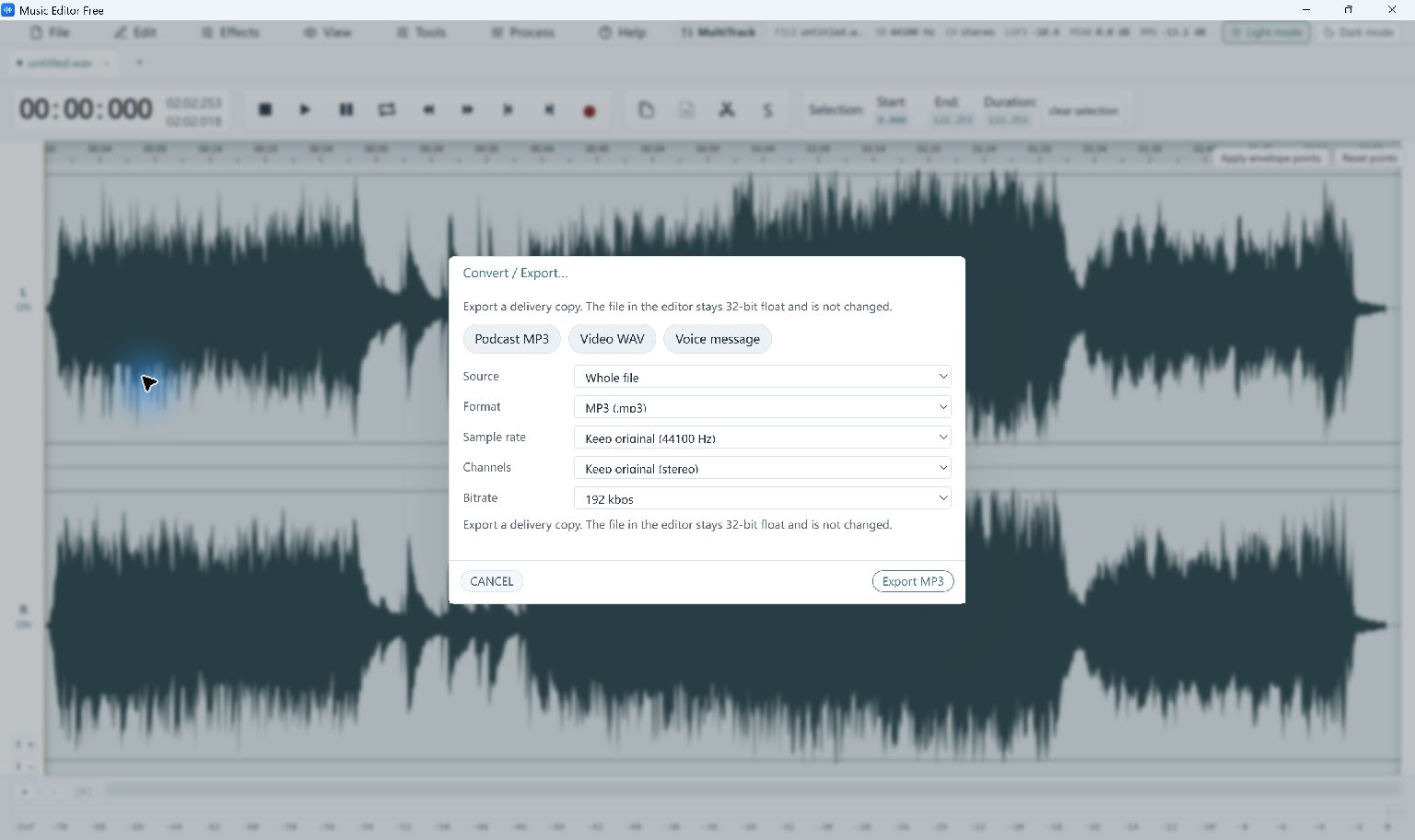
Music Editor Free Convert and Export dialog showing Source, Format, Sample rate, Channels and Bitrate · Select the image to enlarge
Open the Current Export Dialog
Choose File → Convert / Export…. Set Source to Whole file for the complete working audio, or Selection only for a selected passage. Choose the output under Format, then review the controls available for that format.
Choose for the Destination
- MP3: a compressed listening or sharing copy for compatible players. Review its bitrate rather than assuming that a larger value restores missing source detail.
- WAV: an uncompressed PCM option for workflows that need a conventional audio file. Check the sample rate, channels and bit depth offered by the selected output.
- FLAC: a lossless compressed output for keeping a copy of the edited audio.
- M4A or OGG: alternative compressed outputs when the destination player or project supports them.
Review and Save a New Copy
Keep the original sample rate and channels when you do not need to change them. Select different values only for a destination requirement. Use a new file name, export and play the result to check its start, end and sound.
Saving an MP3 as WAV or FLAC does not reconstruct detail already lost in that MP3. The first compressed-format export may download an audio component, which the app caches for later use. See installation requirements, sample-rate help or the manual contents.