
Music Editor Free › How-To Guides › How to Trim an MP3 on Windows 11 and 10
How to Trim an MP3 on Windows 11 and 10
Select the section you want and export it as a new MP3.
Download Free Software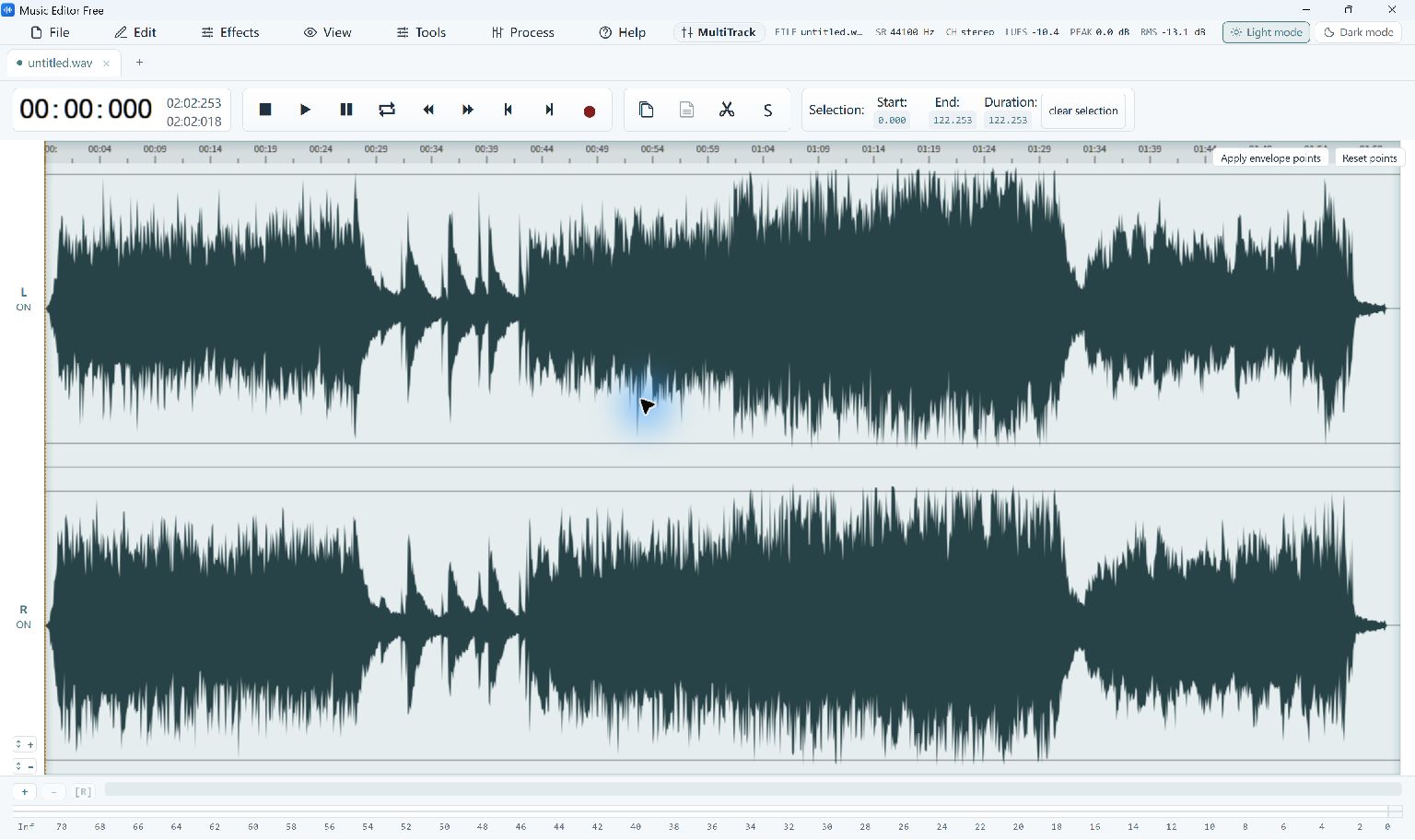
Trim an MP3 in Five Steps
- Open the MP3
Choose File → Open… and select your audio file. Keep the original file as your source copy.
- Select the Section to Keep
Drag across the waveform to select the passage you want. Use the zoom controls and the Selection Start, End and Duration values to check the boundaries.
- Listen to the Selection
Listen around the beginning and end of the passage. Move a boundary if it cuts into a word or musical note.
- Export Only That Selection
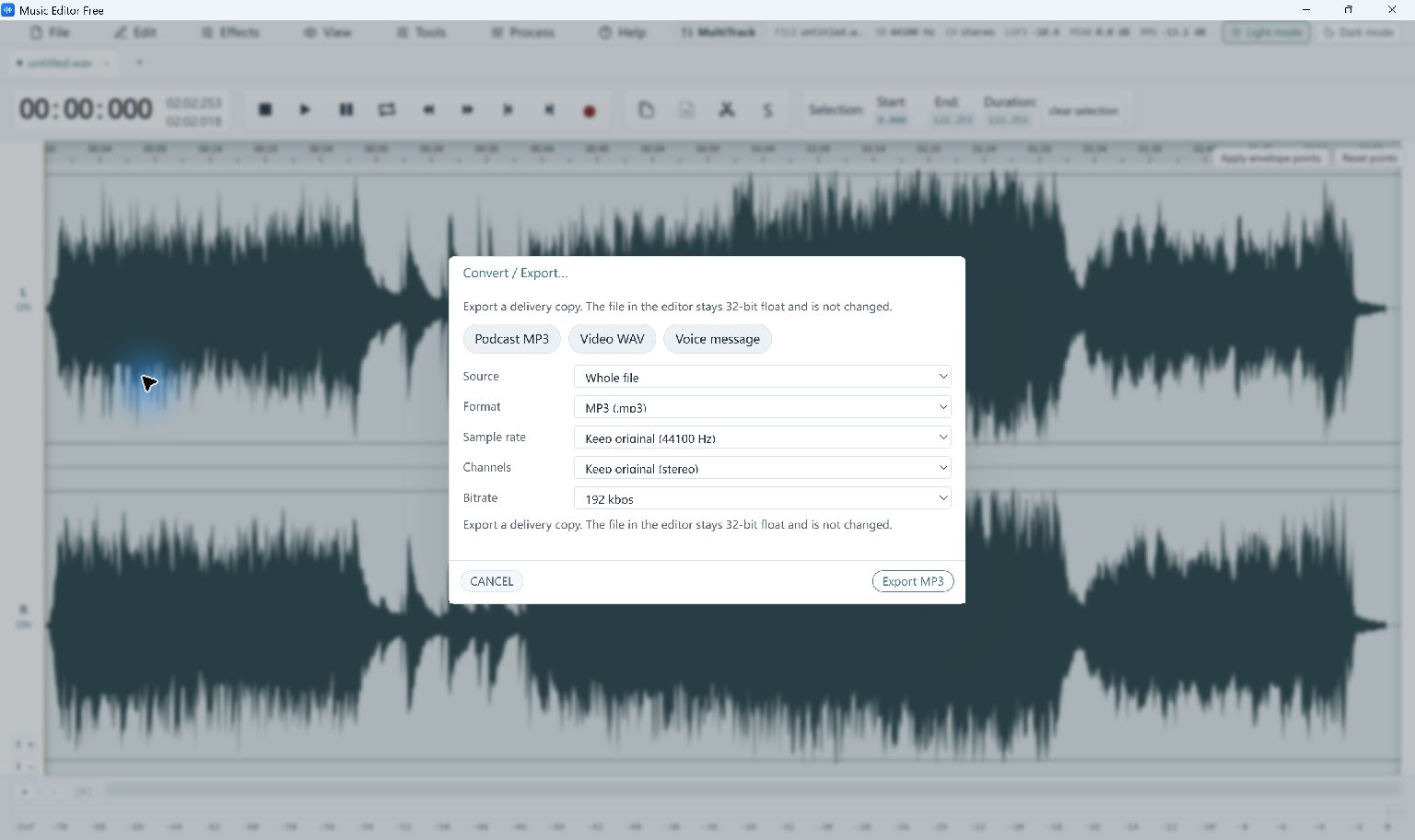
Choose File → Convert / Export…. Set Source to Selection only, then choose MP3 under Format.
- Save a New MP3
Review the output settings and click Export MP3. Give the new file a different name, then play it to check the result.
Remove a Mistake Instead
To remove an unwanted part from the working audio, select that part and choose Edit → Delete. Listen across the edit and use Undo if the cut needs adjusting.
What to Check Before Saving
In the export dialog, Whole file is the default; change Source to Selection only for a trimmed copy. Exporting MP3 re-encodes the audio, so avoid repeatedly editing and exporting the same compressed copy.
The first compressed-audio export may prepare a component download. See system and installation requirements.