
Music Editor Free › How-To Guides › How to Reduce Background Noise in Audio on Windows
How to Reduce Background Noise in Audio on Windows
Apply noise reduction to a voice recording, then check that the speech still sounds natural.
Download Free Software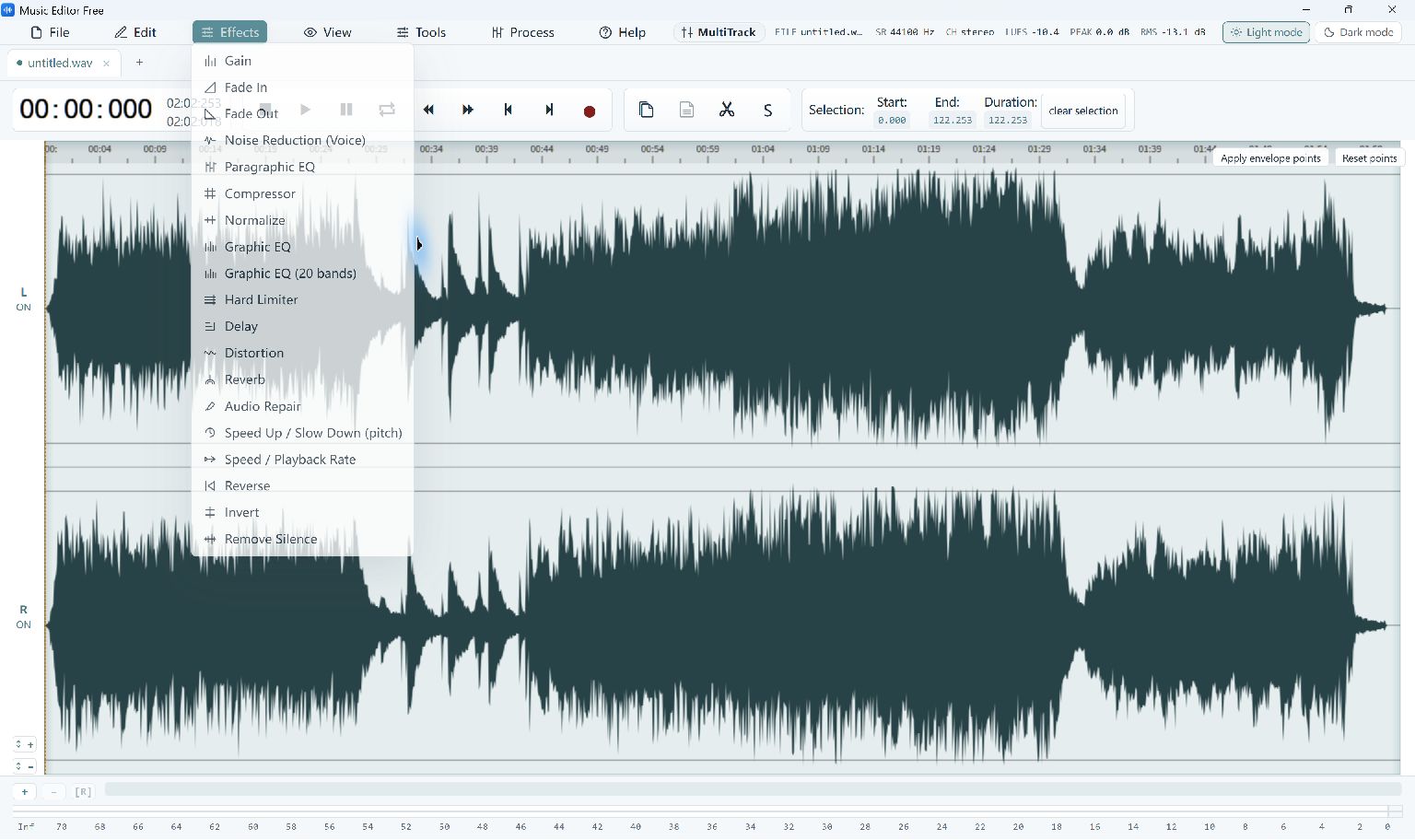
Reduce Noise in Five Steps
- Open Your Recording
Choose File → Open… and load the recording. Listen first so you can identify steady noise, clicks or competing voices.
- Try a Short Section
Select a representative section that includes speech and background sound. Trying a short section first makes the effect easier to judge.
- Apply Voice Noise Reduction
Choose Effects → Noise Reduction (Voice). This command processes the selected audio; if no section is selected, it processes the whole file.
- Compare the Result
Listen for clear words and natural consonants. Use Edit → Undo if the result sounds watery, metallic or less intelligible; do not keep applying the effect to the same section.
- Process and Export a Copy
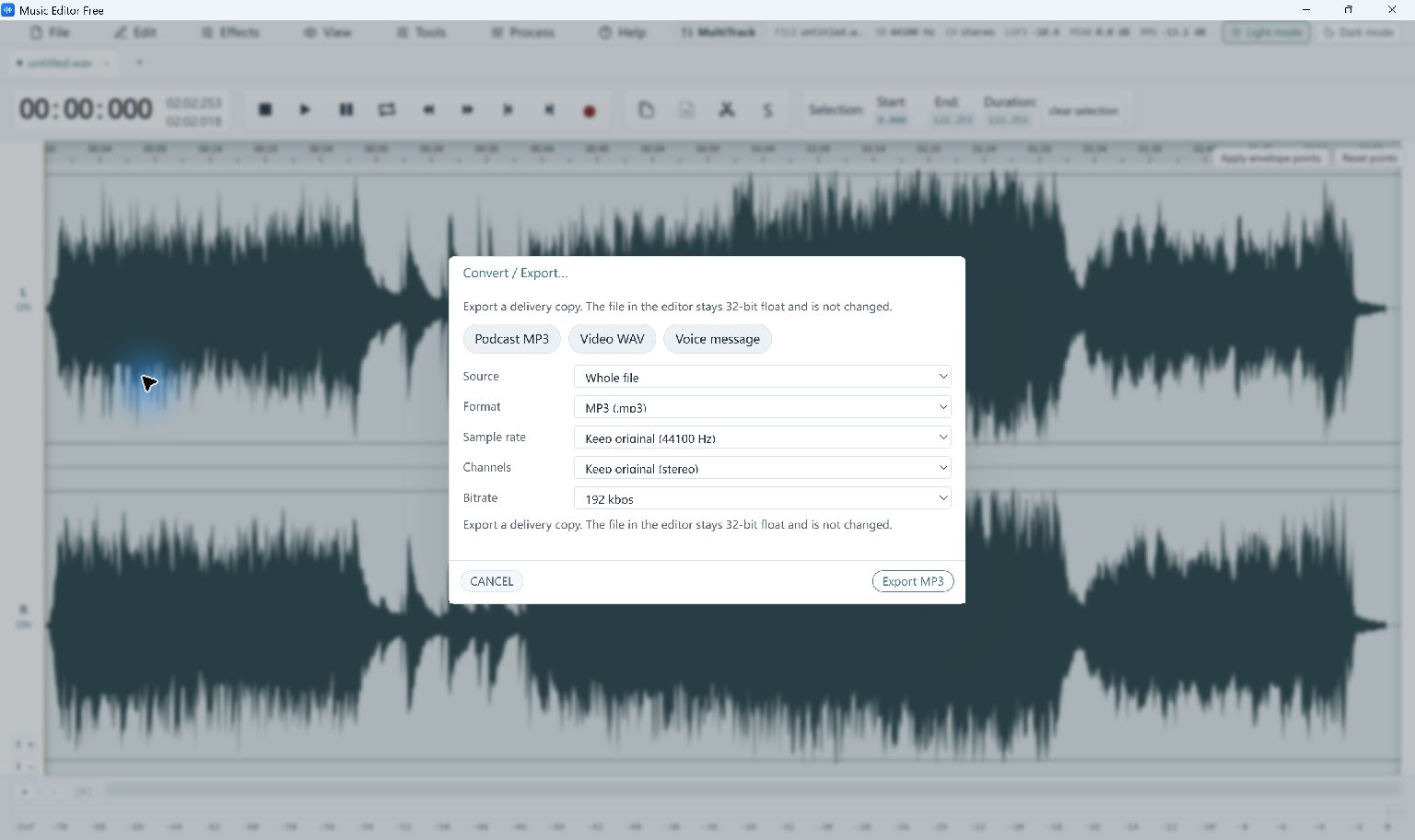
If the test helps, undo the test, select the full section you want to process and apply the command once. Use File → Convert / Export… to save a new file.
Check More Than the Quiet Parts
Listen to the ends of words and quieter phrases as well as the spaces between them. The useful result is clearer speech, rather than silence at any cost.
What to Check Before Saving
Noise Reduction (Voice) runs directly; it does not open a strength slider. It cannot reliably separate every sound, and a clipped recording or another speaker may require a better source recording.
The first compressed-audio export may prepare a component download. See system and installation requirements.