
Music Editor Free › How-To Guides › How to Cut Music to Make a Ringtone on Windows
How to Cut Music to Make a Ringtone on Windows
Select a short section of music and save a separate audio file for your phone.
Download Free Software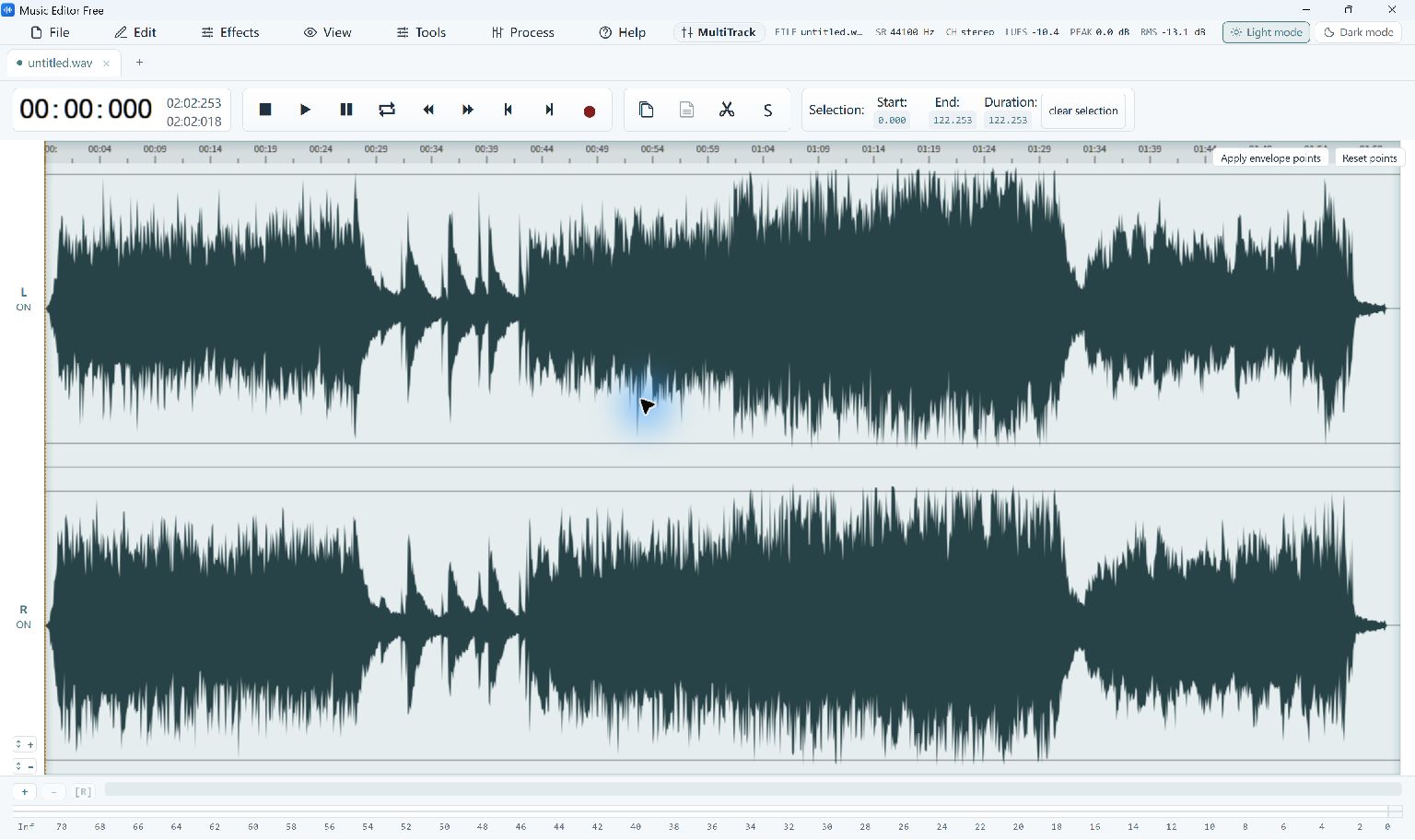
Create a Ringtone in Five Steps
- Open Your Music File
Choose File → Open… and select a song you own or have permission to use. Keep the full-length original.
- Choose a Short Passage
Drag across the waveform to select the phrase you want. Check the Selection Duration value and listen to how the clip starts and ends.
- Open the Export Dialog
Choose File → Convert / Export…. Set Source to Selection only so the output contains the selected passage.
- Choose a Compatible Format
Choose an output format your phone accepts as a ringtone, such as MP3 where supported. Phone requirements vary, so check them before exporting.
- Save and Transfer the Clip
Export with a new file name. Transfer the audio file to your phone and use the phone’s ringtone settings or supported import method to select it.
Add a Fade to the Short Clip
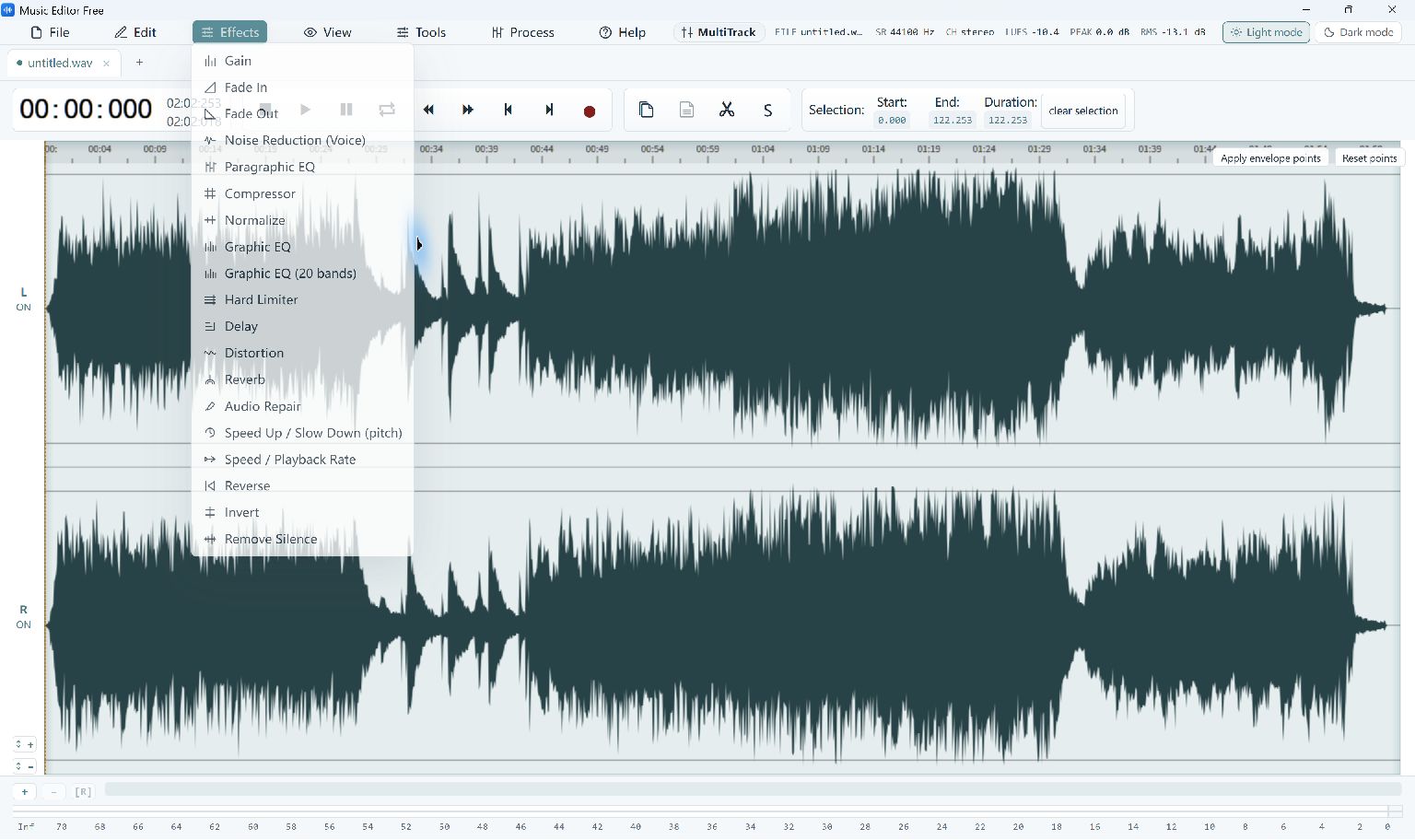
For a softer start or finish, reopen the exported clip, select a short section at its beginning or end and choose Effects → Fade In or Effects → Fade Out. Export the whole clip after checking the result.
What to Check Before Saving
This creates an audio file, rather than installing a ringtone on the phone. Supported formats, duration limits and transfer methods depend on the device.
The first compressed-audio export may prepare a component download. See system and installation requirements.