
Explore the Audio Effects Window
Preview a sound adjustment before deciding whether to keep it.
Download Free SoftwareMusic Editor Free 8.1.0 · Completely free to use
Windows 11 / 10 · 64-bit · No purchase or license key required
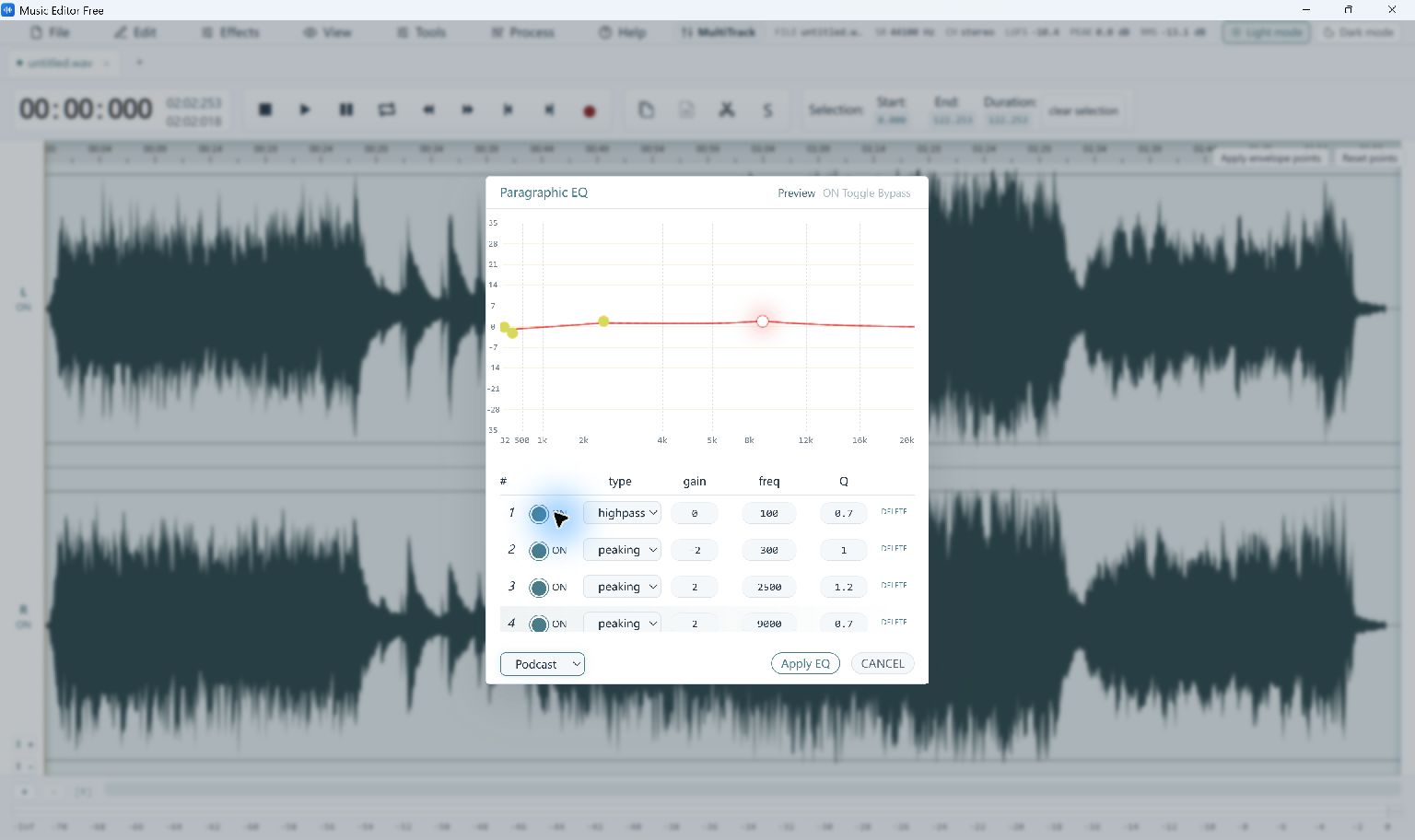
Music Editor Free Paragraphic EQ window with the built-in Podcast Voice preset curve · Select the image to enlarge
Preview an EQ Adjustment
The screenshot shows the actual Paragraphic EQ window with the built-in Podcast Voice preset selected. It is a preview of the controls, rather than a promise that one preset suits every recording.
- Open and select the audio.
Load your recording and choose the passage to adjust. Listen first so you know what you want to change.
- Open Paragraphic EQ.
Choose Effects → Paragraphic EQ. Select a preset or inspect its frequency and gain controls.
- Compare before applying.
Use Preview and the bypass control to judge the change at a similar listening volume. Use Cancel to return without applying the EQ.
- Keep a useful change.
If the result helps, apply the EQ, listen again and export a new copy. Undo the processing if it makes the recording less natural.
Choose the Effect for the Problem
Fades change the start or end of a passage; EQ changes tonal balance. Voice noise reduction is a separate one-click command in the Effects menu. Its result depends on the source recording.
Read the audio effects guide or the voice noise reduction guide. More actual application views are in the screenshot gallery.