
How to Convert a Video with VidMate
Add a video, choose an output preset and save a converted copy on your Windows PC.
Download Free SoftwareVidMate Video Converter 8.2.0 · Completely free to use
Windows 11 / 10 · 64-bit · No purchase or license key required
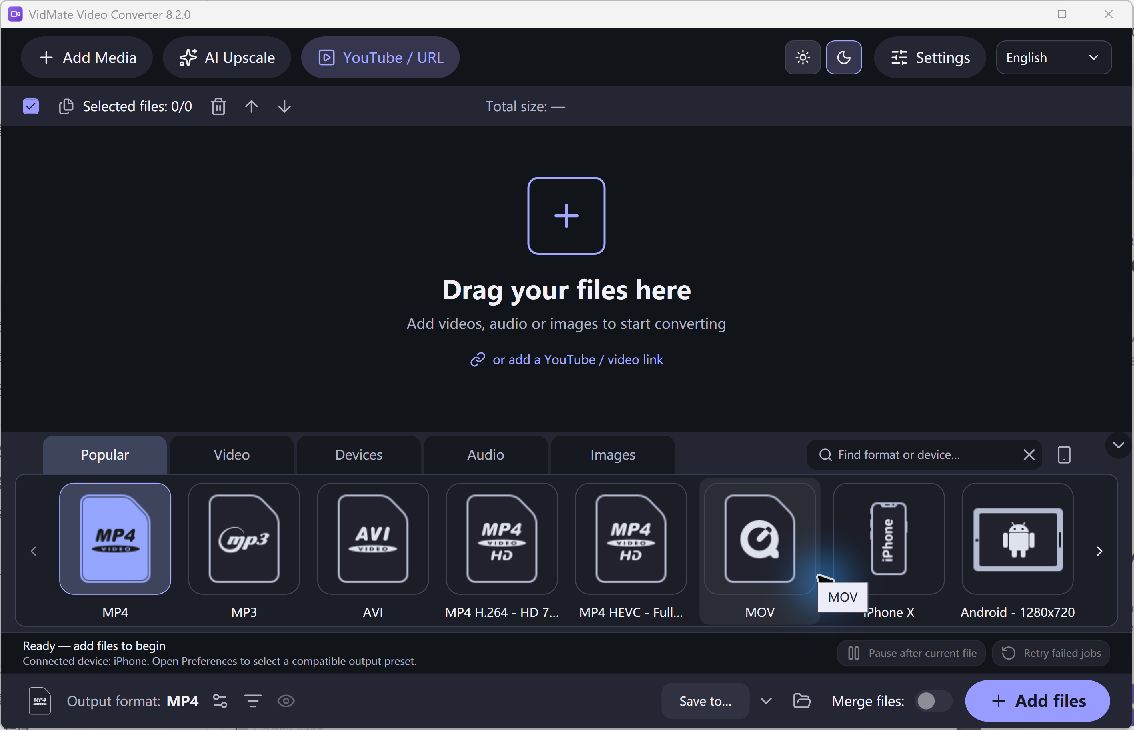
Current VidMate Video Converter workspace with Add Media, output format presets and Save to controls · Select the image to enlarge
Convert a Local Video in Five Steps
Use VidMate Video Converter when a video needs a different format for a player, device or editing project. Keep your original as a source copy and begin with one short file before processing a collection. These steps describe the current Windows application.
- Add the video.
Open Add Media → Add video… and select a local file. You can also drag files into the main window. Check the queue and leave the files you want to process selected.
- Choose the output format.
Use the format choices at the bottom of the window. Select an MP4 preset for an MP4 copy, or browse the available video and device presets. Open Output settings if you need to review the selected preset's options.
- Choose where to save.
Click Save to… and select a destination folder with enough space for the converted copy. Review the output name and settings before starting. Keep a separate folder if you want to distinguish new files from the originals.
- Run the conversion.
Click Convert after adding your files. Follow each selected job's status in the queue. Conversion time depends on the source length, output settings and computer; a large or demanding job can take longer.
- Check the new copy.
When the job finishes successfully, use Open output folder or the job's Open output command. Play the result in the destination player and check picture, sound and duration.
Choose Quality for the Destination
Changing format does not recreate detail missing from the source. Re-encoding can alter quality and file size, so compare a sample before converting many videos. If a job fails, review its status or log and check the input file, destination space and selected preset.
Next: choose a video output format, plan a batch conversion, or review the current free converter.
Download VidMate Video Converter
Get the current free Windows application for this workflow.
Download Free SoftwareCompletely free to use · No purchase or license key required