
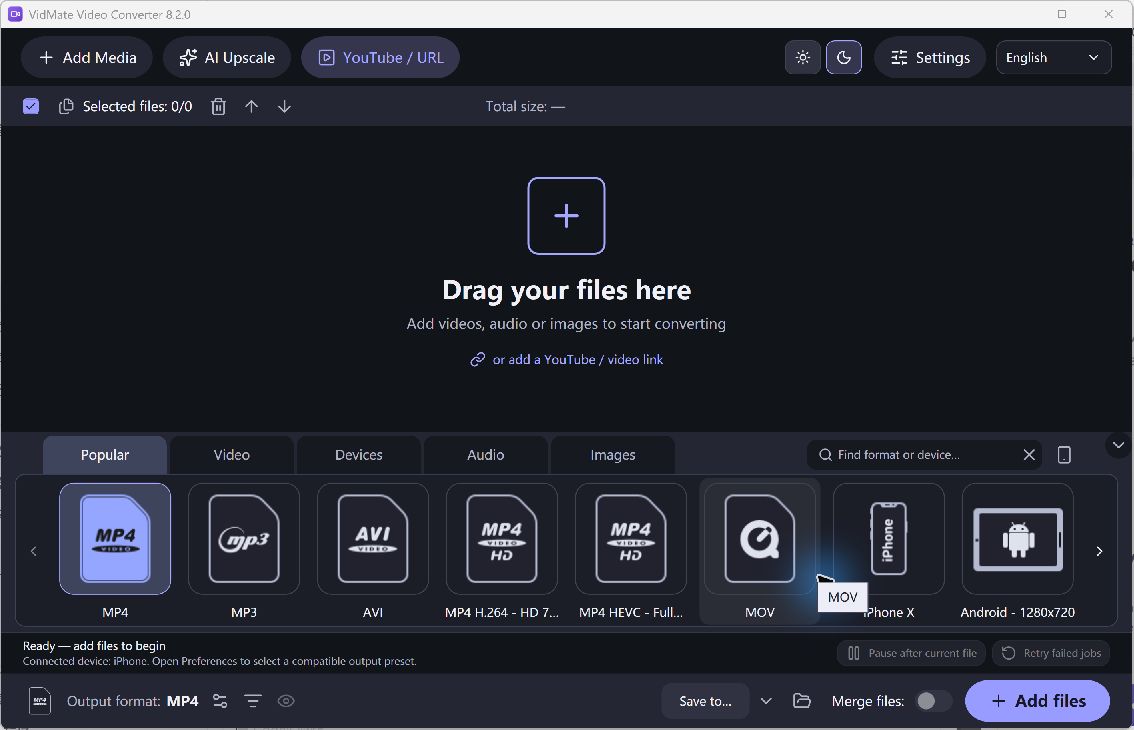
The output format is a set of choices, not just a filename ending. A container holds video and audio streams, while codecs determine how those streams are encoded. Begin with a supported preset for your destination, then change individual settings only when the next workflow requires them.
Match the Preset to the Destination
- List the Requirements. Check what the target accepts, including container, picture size and audio support. An editing application may have different needs from a television or a phone.
- Choose a Preset. Add a source video and select the closest appropriate output preset. Review its current settings before assuming a name matches every device generation.
- Keep the Source in Mind. Avoid unnecessary upscaling. For a low-resolution recording, a larger frame mostly creates a larger copy rather than restoring detail that was never captured.
- Review the Sound. Keep a compatible audio output and listen to the result. Picture playback alone does not establish that the sound format, channels or synchronization are correct.
- Test the Real Destination. Convert one example and open it where it will be used. Once it works, use the same reviewed settings for similar sources.
Check the Quality and Output
A preset is a starting point, not a universal compatibility certificate. Different devices and applications can impose different limits on the same MP4 extension. Re-encoding may reduce quality; keep the best source and avoid converting an already converted copy repeatedly.
When only audio is needed, choose an audio output instead of producing a new video containing pictures you will not use.