
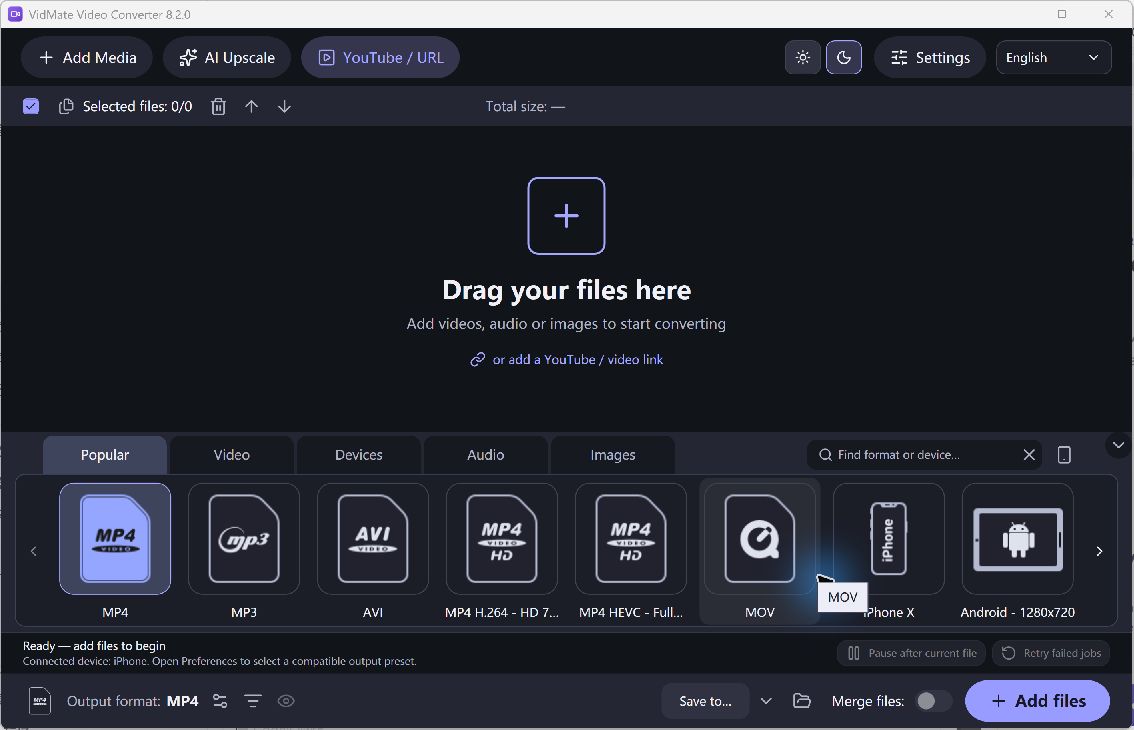
Conversion time depends on the source, selected codec and settings, available hardware and storage. No fixed speed applies to every file. A well-planned queue saves time by avoiding the wrong outputs, unnecessary resolution changes and repeated work after a failed compatibility check.
Prepare the Video Queue
- Review the Files. Group sources with similar requirements. Separate videos that need different outputs so one convenient preset does not create unsuitable files throughout the queue.
- Choose a Practical Size. Use a resolution and quality appropriate for the destination. Upscaling a small source consumes work without recovering detail, while excessive compression may require another conversion later.
- Test One Example. Convert a representative video first. Check picture, sound and the receiving player, then retain the successful settings instead of testing an entire collection at once.
- Prepare the Destination. Choose a writable folder with sufficient space. Avoid confusing input and output files, and review any storage or permission error before restarting the same task.
- Watch Completion Results. Review failed items and their reported reason. Retry only after correcting the relevant source, destination or settings problem rather than repeatedly submitting the unchanged queue.
Check the Quality and Output
The old page’s speed language should not be read as a current performance measurement. Hardware acceleration and encoding choices vary with the system and selected format. This guide makes no percentage speed claim or promise that every source can be converted without re-encoding.
The fastest useful conversion is one that produces the correct file the first time; verify a sample before scaling up.