
See the Video Conversion Workspace
Find the input queue, output choices and destination controls in the current app.
Download Free SoftwareVidMate Video Converter 8.2.0 · Completely free to use
Windows 11 / 10 · 64-bit · No purchase or license key required
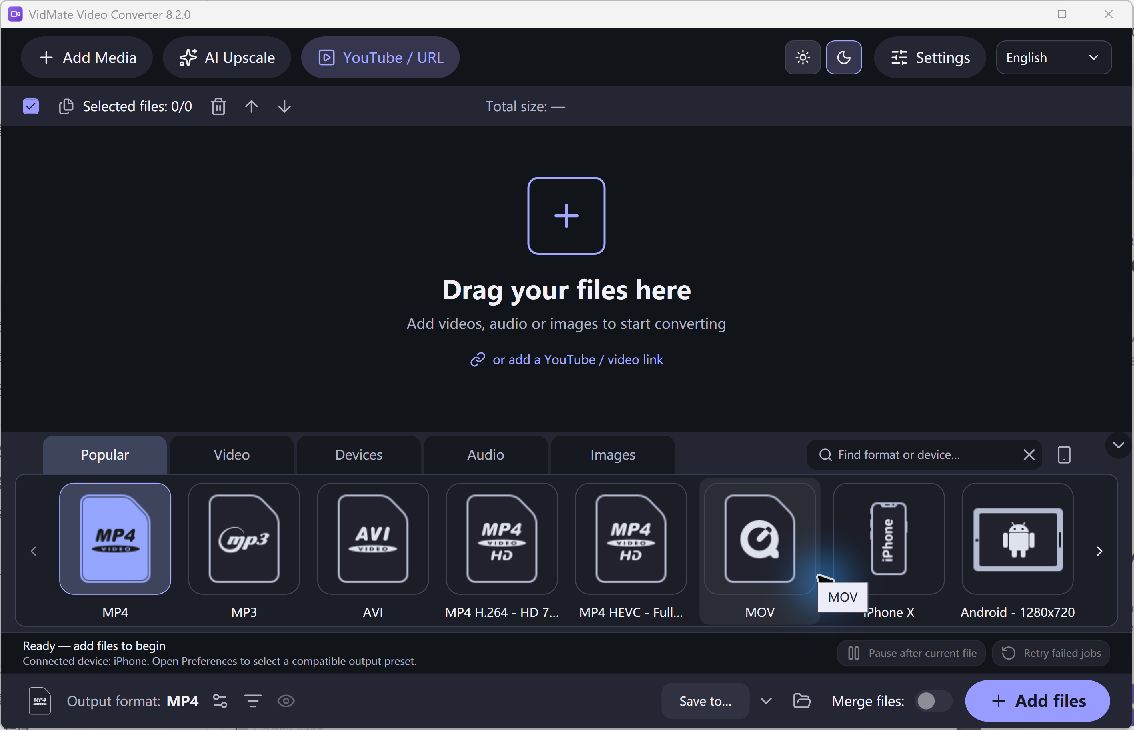
VidMate Video Converter ready to add local media, with output presets and destination controls visible · Select the image to enlarge
From an Empty Queue to a Converted File
This is the current VidMate Video Converter workspace before files are added. The screenshot shows the real application; it does not depict a completed or timed conversion.
- Add your source.
Choose Add Media → Add video… or drag a local file into the queue. Review the selected jobs.
- Choose an output.
Select a video or device preset from the format panel. Review Output settings when the destination needs a particular format or encoding option.
- Set the destination.
Use Save to… to choose a folder for the new files. Allow enough room for both the sources and converted copies.
- Convert and review.
Start conversion after adding the files and follow their queue status. When a job succeeds, open its output and check playback. The time needed varies with the source, preset and computer.
For a full walkthrough, read how to convert a video. You can also compare output formats or return to the VidMate product page.