
Windows 11 can record a microphone with its built-in Sound Recorder, while a waveform editor gives you more control over recording, trimming, cleanup and export. Recording computer playback is different: it requires Stereo Mix from the audio driver or a tool that supports Windows loopback capture.
This guide explains three practical methods, how to choose the correct input and what to check when Windows records silence.
Quick answer: the best method for each job
| Your goal | Best starting method | Important limitation |
|---|---|---|
| Record a quick voice note | Windows Sound Recorder | Basic editing and export control |
| Record and edit in one workflow | Music Editor Free | Windows desktop application |
| Record sound playing through the PC | Stereo Mix or loopback-capable recorder | Availability depends on driver or software |
| Record screen, app sound and microphone | Snipping Tool, Game Bar or OBS | Produces a video-oriented workflow |
Method 1: record a microphone with Windows Sound Recorder
Sound Recorder is the quickest choice for a voice memo, interview or simple microphone capture. Microsoft states that the Windows 11 app can record for up to three hours per recording file.
- Connect your microphone or headset.
- Open Settings → System → Sound → Input and select the intended device.
- Open Sound Recorder from the Start menu.
- Grant microphone permission if Windows asks.
- Choose the input device, press Record and speak at a normal level.
- Stop, rename the recording and listen through it before sharing.
Use Microsoft’s Sound Recorder FAQ for the current built-in app controls and permission guidance.
Method 2: record and edit with Music Editor Free
Use a waveform editor when the recording still needs trimming, fades, volume adjustment, noise reduction or a specific output format. Music Editor Free combines capture and editing in one Windows 11/10 workflow.
Explore Music Editor Free for Windows 11/10
1. Open the recorder
Launch Music Editor Free and activate the audio recording window. Close applications that may be using the microphone exclusively.
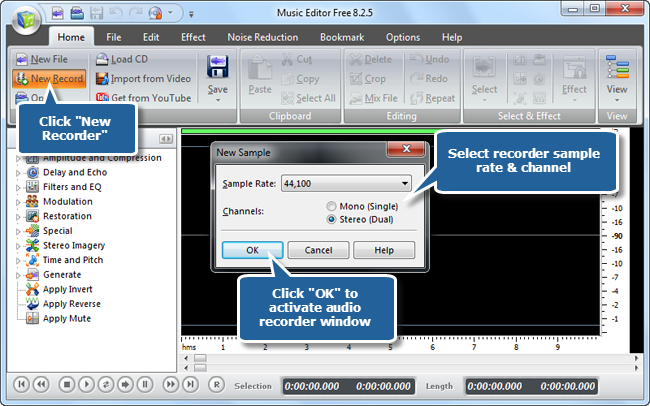
2. Choose the recording device and source
Select the microphone, line input or other available Windows recording source. The exact list comes from the installed audio driver, so two Windows 11 computers may show different options.
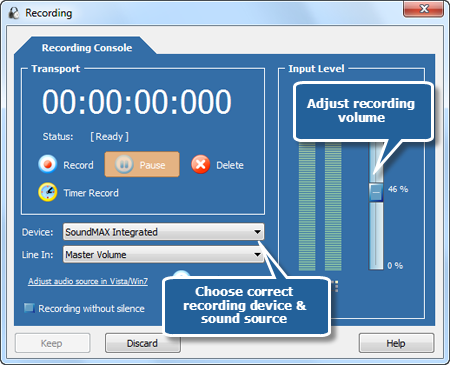
Speak at the loudest level you expect and watch the meter. Aim for a healthy signal without repeatedly hitting the maximum. If the level clips, lower the Windows input volume or move slightly farther from the microphone.
3. Record a short test
Record ten seconds before the real session. Listen on headphones for hiss, hum, echo and keyboard noise. A quick test prevents an entire interview or narration from being captured with the wrong device.
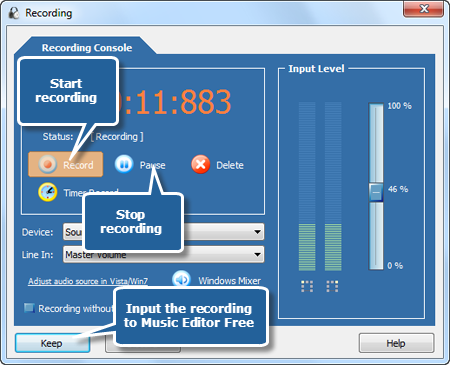
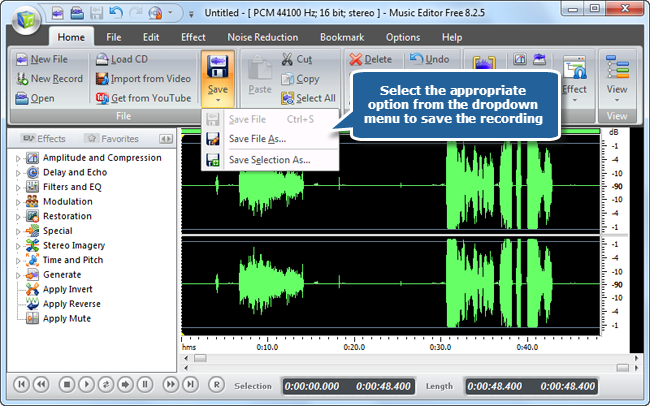
4. Stop, edit and save
Stop the recording, remove unwanted silence, add short fades at hard boundaries and correct obvious level problems. Save a WAV master if the audio may need more editing; export an MP3 copy for convenient sharing.
Method 3: record computer audio on Windows 11
“Computer audio,” “system audio” and “what you hear” mean the sound being sent to the speakers or headphones. This is not the same as microphone recording.
Option A: Stereo Mix
Some audio drivers provide a recording source called Stereo Mix, What U Hear or a similar name. Open the classic Sound control panel, choose the Recording tab and enable disabled devices. If Stereo Mix appears, enable it and select it in the recorder.
Stereo Mix is supplied by the hardware driver, not guaranteed by Windows itself. If it is absent, reinstalling the correct manufacturer driver may help, but many computers simply do not expose it.
Option B: Windows loopback capture
Windows provides an audio loopback mechanism that compatible applications can use to capture the system mix. Microsoft documents this in its loopback recording reference. If your current editor cannot see Stereo Mix, use a recorder that explicitly supports Windows WASAPI loopback.
Record only audio you own or have permission to capture. Streaming services, meetings and calls may be protected by copyright, terms of service or local consent laws.
Fix: Windows 11 records silence or the wrong microphone
- Check privacy permission. Go to Settings → Privacy & security → Microphone and allow microphone access plus access for desktop apps.
- Choose the device explicitly. Under Settings → System → Sound → Input, select and test the intended microphone.
- Check the physical connection. Reconnect USB devices and confirm analog plugs are in the microphone input, not the headphone output.
- Close competing apps. Conferencing software may hold the device or change its level.
- Match the format. If an application reports an unsupported sample format, try a standard setting such as 44.1kHz or 48kHz.
- Update the manufacturer driver. Use the PC or audio-interface maker’s driver when Windows shows only a generic device.
Microsoft’s official microphone setup and test guide shows where Windows 11 displays the live input test.
Recording settings that matter
- Sample rate: 44.1kHz is common for music; 48kHz is common for video. Choose one rate and avoid unnecessary conversions.
- Bit depth: use an uncompressed working format when further editing is planned.
- Channels: a single voice microphone is normally mono. Stereo is useful when the source truly contains different left and right information.
- Input level: leave headroom. A quiet clean recording can be raised later; clipped peaks cannot be fully repaired.
- File format: WAV for editing or archiving, MP3 for smaller shareable copies.
How to get a cleaner recording
Move the microphone closer, reduce gain, turn away from fans and speakers, and place the microphone on a separate stand. Record a few seconds of room tone before speaking. That quiet sample can help if you later need to remove background noise.
After recording, use this Windows 11 MP3 trimming guide to remove setup chatter and long silence without clipping words.
Frequently asked questions
Does Windows 11 have a built-in audio recorder?
Yes. Sound Recorder handles basic microphone capture. A dedicated waveform editor is more suitable when you need detailed cuts, effects, cleanup or export choices.
Can I record computer sound with Sound Recorder?
Only if an appropriate recording source is exposed to the app. Microphone capture is straightforward; system playback generally requires Stereo Mix or loopback-capable software.
Why is Stereo Mix missing?
Stereo Mix depends on the audio driver and hardware vendor. Enable disabled devices and install the manufacturer’s current driver, but understand that some devices never provide it.
Should I record voice in mono or stereo?
Use mono for one microphone unless there is a specific reason to preserve separate left and right channels. It uses less space and keeps the voice centered.
What level should I record at?
Keep loud peaks below the maximum so they do not clip. Exact meters differ, but visible headroom is safer than a waveform that repeatedly touches the limits.
Final checklist
- Select and test the correct input.
- Record ten seconds and listen before the real session.
- Leave headroom.
- Keep the untouched recording.
- Edit in WAV when practical and create the MP3 once at the end.