
Need to shorten an MP3 on Windows 11? The most reliable method is to open a copy in a waveform editor, select the part you want to keep, trim everything outside the selection, add very short fades, and export once. This guide shows the complete process and explains the settings that prevent clicks, clipping, and unnecessary quality loss.
This tutorial uses Music Editor Free, a Windows audio editor developed by our team. The editing principles also apply to other waveform editors.

Quick answer: how do I trim an MP3 in Windows 11?
- Make a copy of the original MP3.
- Open the copy in an audio editor.
- Drag across the waveform to select the audio you want to keep.
- Preview the beginning and end, then use Trim.
- Add a short fade-in and fade-out if either edge clicks.
- Export once as MP3, or save a WAV master before making the MP3.
Windows Media Player can play an MP3, but it is not a precision waveform editor. A dedicated editor makes it much easier to see silence, words and beats and to place an accurate cut.
See Music Editor Free for Windows 11/10
Before you edit: protect the original
Copy the source file first and give the copy a useful name such as interview-trim-working.mp3. Editing a copy gives you an immediate way back if a cut removes too much or you choose the wrong export settings. For an important recording, keep the untouched original in a separate folder.
If you expect several rounds of editing, consider making a WAV working copy. MP3 is a lossy delivery format: repeatedly opening and exporting it can introduce additional compression artifacts. Keeping one lossless working file and creating the final MP3 only once avoids that problem.
Step-by-step: trim an MP3 with Music Editor Free
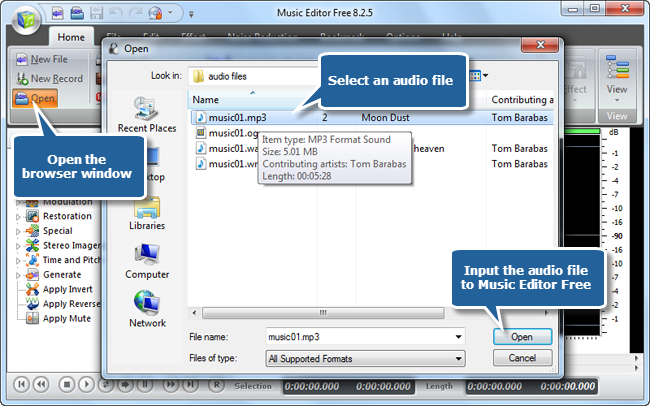
1. Open the MP3
Launch the editor and open your working copy. Wait for the waveform to appear. The horizontal direction represents time, while taller waveform peaks usually indicate louder audio.
2. Decide whether to keep or remove the selection
There are two common trimming jobs:
- Keep one continuous section: select the wanted audio and choose Trim. Everything before and after it is removed.
- Remove a mistake in the middle: select only the unwanted word, pause or noise and choose Cut/Delete. The surrounding audio remains.
Knowing which job you are doing prevents the most common mistake: selecting the good section and deleting it.
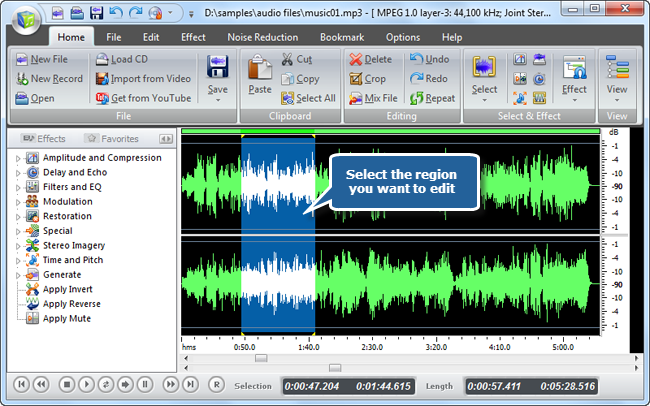
3. Select the exact audio range
Drag across the waveform to mark the desired region. Zoom in near both boundaries and listen a second or two before and after each cut point. For speech, cut at a natural pause rather than in the middle of a consonant. For music, a zero crossing or quiet point is less likely to produce a click.
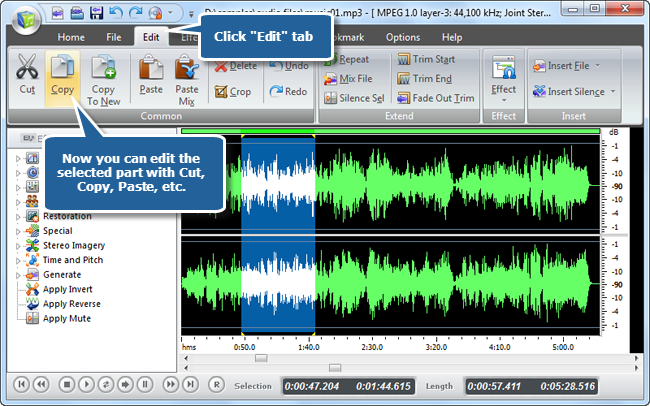
4. Apply Trim or Cut
Use Trim when the selection is the part you want to keep. Use Cut when the selection is the part you want to remove. Immediately play across the new boundary. If the edit feels abrupt, undo it, leave a little more breathing room and try again.
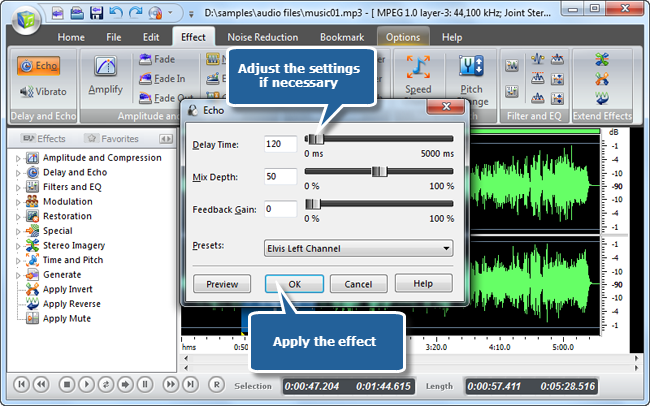
5. Prevent clicks with tiny fades
A cut can click when the waveform jumps suddenly at its new edge. Select a very short area at the beginning and apply Fade In; repeat at the end with Fade Out. For speech, a fade of only a few milliseconds may be enough. Long fades can make the first or last word sound weak, so use the shortest fade that solves the problem.
6. Export the trimmed file
Save under a new filename. If the source is already an MP3 and you only need a shareable result, choose an MP3 bitrate close to the source rather than increasing it. A higher number cannot restore detail that was previously removed. For podcasts and voice, a moderate bitrate is usually sufficient; for music, use a higher setting if file size permits.
Trim, cut, split and crop: what is the difference?
| Command | What it does | Best use |
|---|---|---|
| Trim | Keeps the selection and removes the outside audio | Shortening a song, clip or recording |
| Cut/Delete | Removes the selection | Deleting a mistake or unwanted pause |
| Split | Creates separate sections or files | Dividing a long recording into chapters |
| Crop | Usually means the same as Trim in audio tools | Keeping only one chosen region |
How to trim an MP3 without losing quality
Most general-purpose editors decode an MP3 for editing and encode it again during export. You can minimize audible loss with a disciplined workflow:
- Start from the highest-quality source available.
- Complete all cuts and effects in one session.
- Save a WAV master if you may edit again.
- Create the delivery MP3 only once.
- Do not raise the bitrate and expect missing detail to return.
- Listen to the full exported file before deleting any working files.
If you require frame-level, no-re-encode MP3 cutting, use a specialist lossless MP3 cutter. That workflow is fast and preserves compressed frames, but it offers fewer restoration and effects tools than a waveform editor.
Common trimming problems and fixes
The cut starts too late or removes part of a word
Undo, zoom in further and move the boundary slightly earlier. Keep a fraction of a second of room tone before speech so the start does not feel clipped.
There is a click at the edit point
Move the cut toward a quieter point or add a tiny fade. A short crossfade is useful when joining two sections with different background levels.
The exported MP3 sounds distorted
Check whether the waveform is hitting the upper and lower limits. Lower the gain before export and avoid aggressive normalization. Distortion already present in the source cannot be repaired by choosing a higher bitrate.
The file became much larger
You probably selected a higher bitrate or a lossless format. That can be appropriate for a master file, but it does not improve an already-compressed MP3. Choose a delivery setting that matches how the file will be used.
Frequently asked questions
Can Windows 11 trim an MP3 without installing software?
Windows 11 includes recording and video tools, but it does not provide a general, precision waveform editor for every MP3 workflow. Clipchamp can trim audio inside a video project, while a dedicated audio editor is more direct when the final result should remain an audio file.
Should I use Trim or Delete?
Select the part you want to keep and use Trim. Select the part you do not want and use Cut or Delete. Preview the selection before running either command.
Can I remove silence automatically?
Some editors provide silence detection, but automatic removal can make speech sound unnatural. For a short recording, manual cuts with small amounts of room tone usually sound better.
What format should I save after trimming?
Use MP3 for convenient sharing and playback. Use WAV for a master you expect to edit again. Keep the original until you have verified the finished export.
Next step
For a clean result, focus on accurate boundaries first and export settings second. One careful cut and one final encode will usually sound better than repeatedly trimming and resaving the same MP3.
Explore Music Editor Free for Windows 11/10 Learn how to apply audio effects