
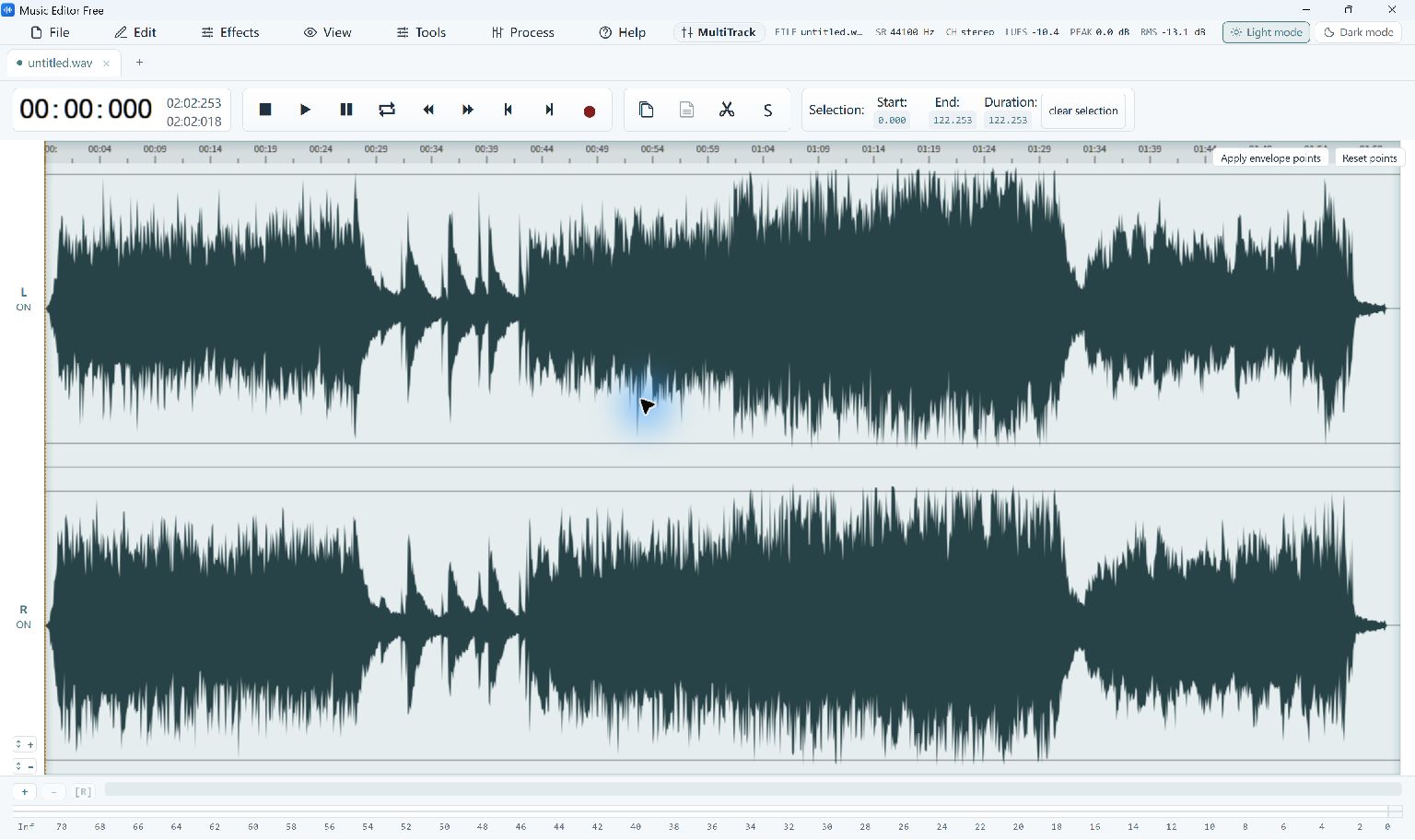
An effect changes the sound of selected audio or the whole recording. A fade can soften an ending, EQ can change tonal balance, and normalization can adjust level. Decide what you want to improve before opening the effects controls; several effects are rarely necessary for every file.
Apply and Compare an Effect
- Keep an Original. Open your audio and keep an untouched source. Select a short, representative passage so you can hear the change without processing a long recording first.
- Choose One Effect. Open the relevant effect, such as EQ or a fade. Use a modest adjustment and review whether the current selection or full recording will be affected.
- Compare the Result. Listen to the original and processed audio at a similar volume. Check clear speech, quiet detail and transitions rather than judging only the loudest section.
- Undo When Needed. If the result is harsh, distorted or unnatural, use Undo and try a smaller change. Avoid stacking more processing just to repair a previous excessive setting.
- Save a Listening Copy. Export under a new name. Play the exported file from beginning to end and keep your working original for later revisions.
Check the Quality and Output
An effect cannot restore information absent from the source. Severe clipping, a competing voice or heavily compressed audio may remain imperfect. Some tools act immediately rather than presenting an adjustable preview; use Undo to compare that result with the original.
For a clean ending, a short fade may do more than a large chain of unrelated effects.