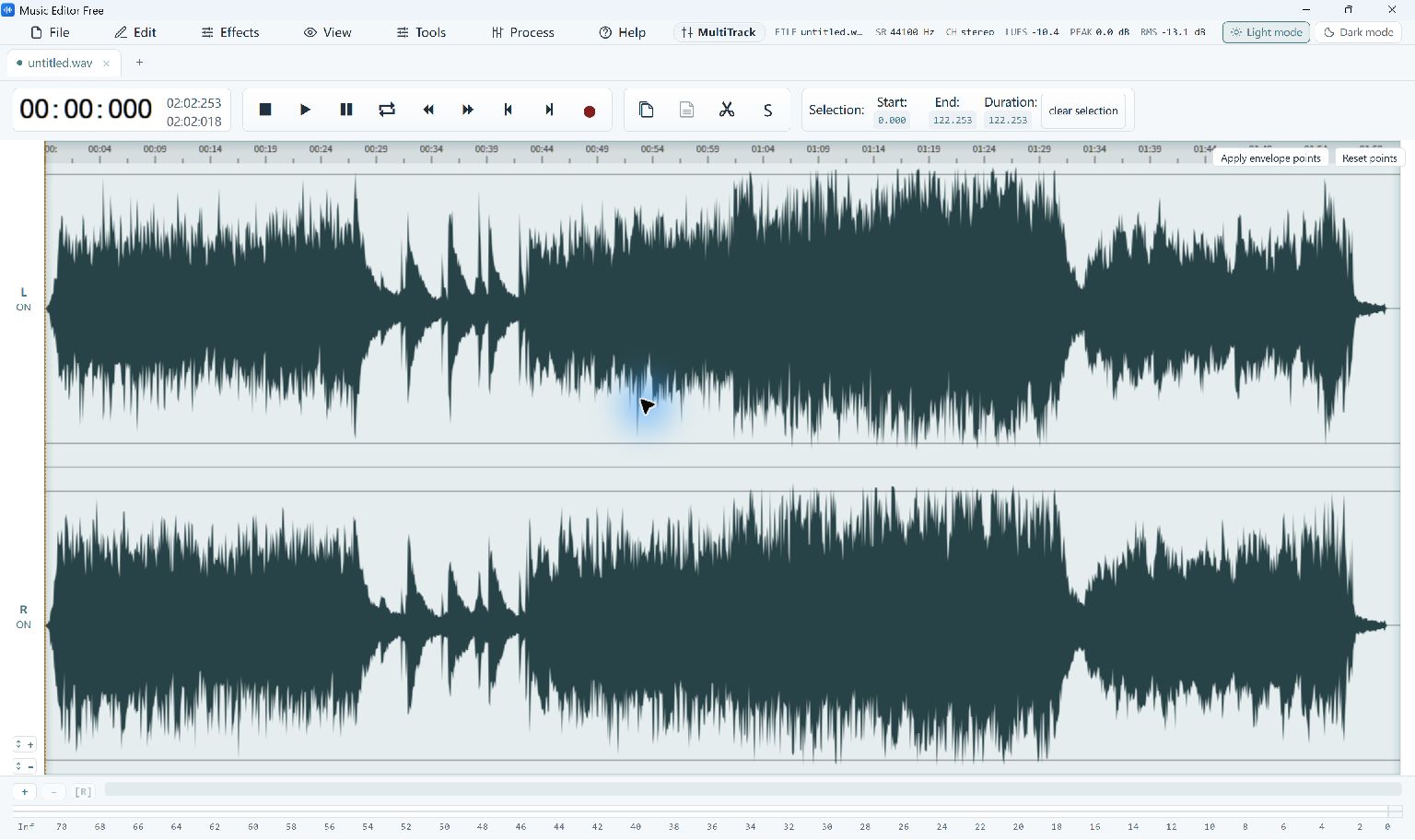
Recording creates a new audio file from an available input. Music Editor Free includes microphone and system-playback recording, but the inputs it can use depend on Windows devices and permissions. A test recording helps identify a silent input, room noise or distortion before a long session is lost.
Set Up and Test Recording
- Check the Input. Connect the microphone or prepare the computer audio you intend to capture. Confirm that the device works in Windows and that microphone access is allowed when needed.
- Choose Recording Controls. Open the editor recording panel and select the appropriate available source. Watch the live level meter while speaking or playing the source audio.
- Record a Test. Capture several seconds at a normal level. Listen back through headphones, checking both quiet detail and the loudest sound you expect during the full take.
- Correct the Setup. Lower an overloaded input or improve microphone position if the room dominates the voice. Pause unrelated notifications and repeat the test after changing the setup.
- Save the Full Take. Record the session, save a working original and trim mistakes afterward. Export a separate listening copy when you are satisfied with the edit.
Check the Quality and Output
A recording is limited by the source, device and Windows configuration. This page does not promise capture of every protected stream or every application. An already distorted take cannot reliably be repaired by increasing recording quality or applying stronger effects afterward.
Use a comfortable playback level and leave headroom for unexpectedly loud words or music peaks.