
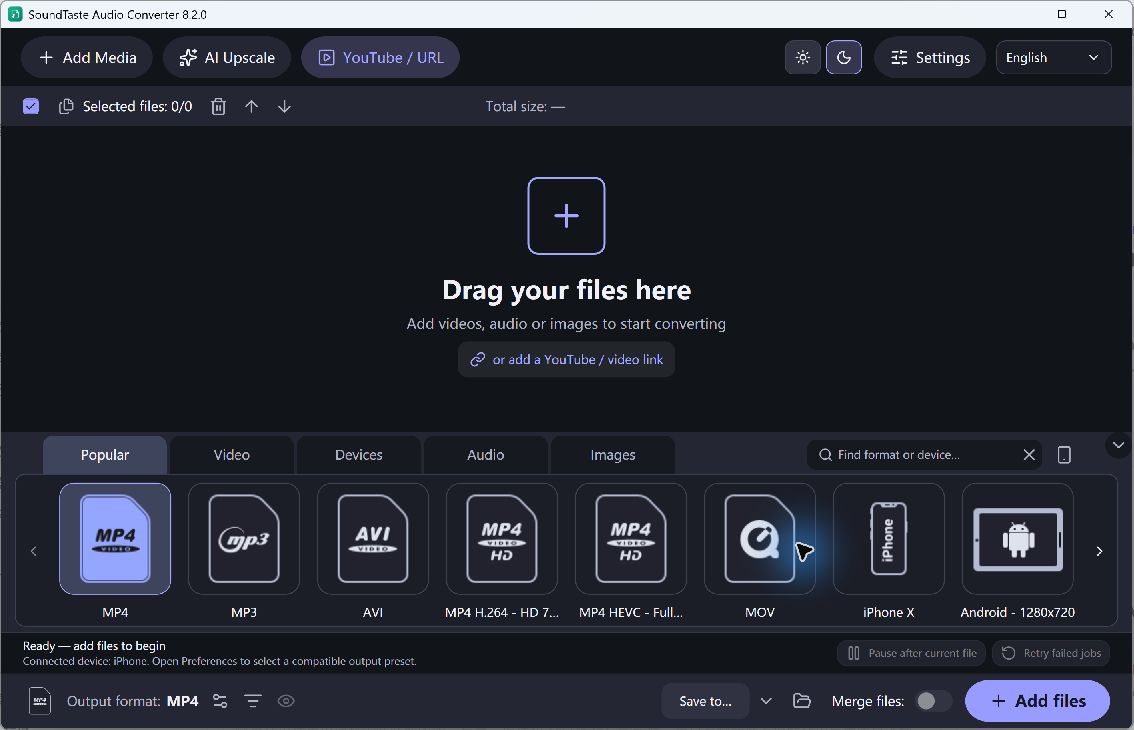
A converter creates another version of an existing file. It does not need to replace the source, and it cannot improve missing detail simply by choosing a larger format. For a first task, use one known recording and a destination folder you can find easily after conversion.
Convert One Audio File
- Add an Audio Source. Open SoundTaste and add a supported music file or recording. Review its name and duration so you can recognize the corresponding output afterward.
- Pick a Useful Format. Choose MP3 or another supported listening format for a compatible player, or WAV or FLAC when the next editing workflow requires one of those formats.
- Review the Queue Mode. Keep separate output for a normal single-track conversion. Use Join files only when you deliberately want to combine multiple included inputs into one continuous result.
- Choose the Destination. Select a writable output folder with enough space. Keep the source and output clearly separated, particularly when filenames use the same title but different extensions.
- Convert and Listen. Start conversion and review completion. Play the output and confirm its format works in the receiving application before repeating the task with more recordings.
Check the Quality and Output
The current application’s layout differs from older SoundTaste screenshots and wizard labels. Some formats expose different options, and source quality limits the result. Do not interpret the converter’s format list as a promise that every damaged or unusual audio file can be read.
Use a short, representative source for your first test, then keep the successful settings for similar tracks.